
Lab08 for Slack
Your deal flow, in the channel your team already reads
Lab08 brings your fund’s deal flow into Slack. Bind a channel and Lab08 posts there when a company is added, when due diligence starts and settles, when a company moves stage, and once a day with the companies that emailed you but are not yet in your pipeline. Ask it a question and it answers from that company’s whole workspace: every document, meeting note, finding and conclusion.
Included with a Lab08 subscription. Installing takes one approval in Slack and is started by a workspace admin in Lab08.
What Lab08 posts
Six things worth interrupting a channel for. You choose which.
A binding is a channel plus the events it should hear about. Bind one channel for the whole fund, or several with different events each. Everyone in a bound channel can read what Lab08 posts.
-
A company is added
A new company lands in your pipeline, with who added it and a link to open it.
-
An outside-in run starts
Lab08 has started screening a company from public sources.
-
A due-diligence run finishes
The run has settled. Open the findings and the evidence behind them.
-
A company changes stage
A company moves to a new pipeline stage, and the channel hears about it.
-
A connection needs reconnecting
A connected integration, such as Gmail, needs re-authorising before it can keep working.
-
New potential deals, daily
Once a day on weekdays: companies that emailed you but are not yet in your pipeline, each with Add to pipeline and Discard buttons.
Ask Lab08
Ask in Slack. Answered from the whole workspace.
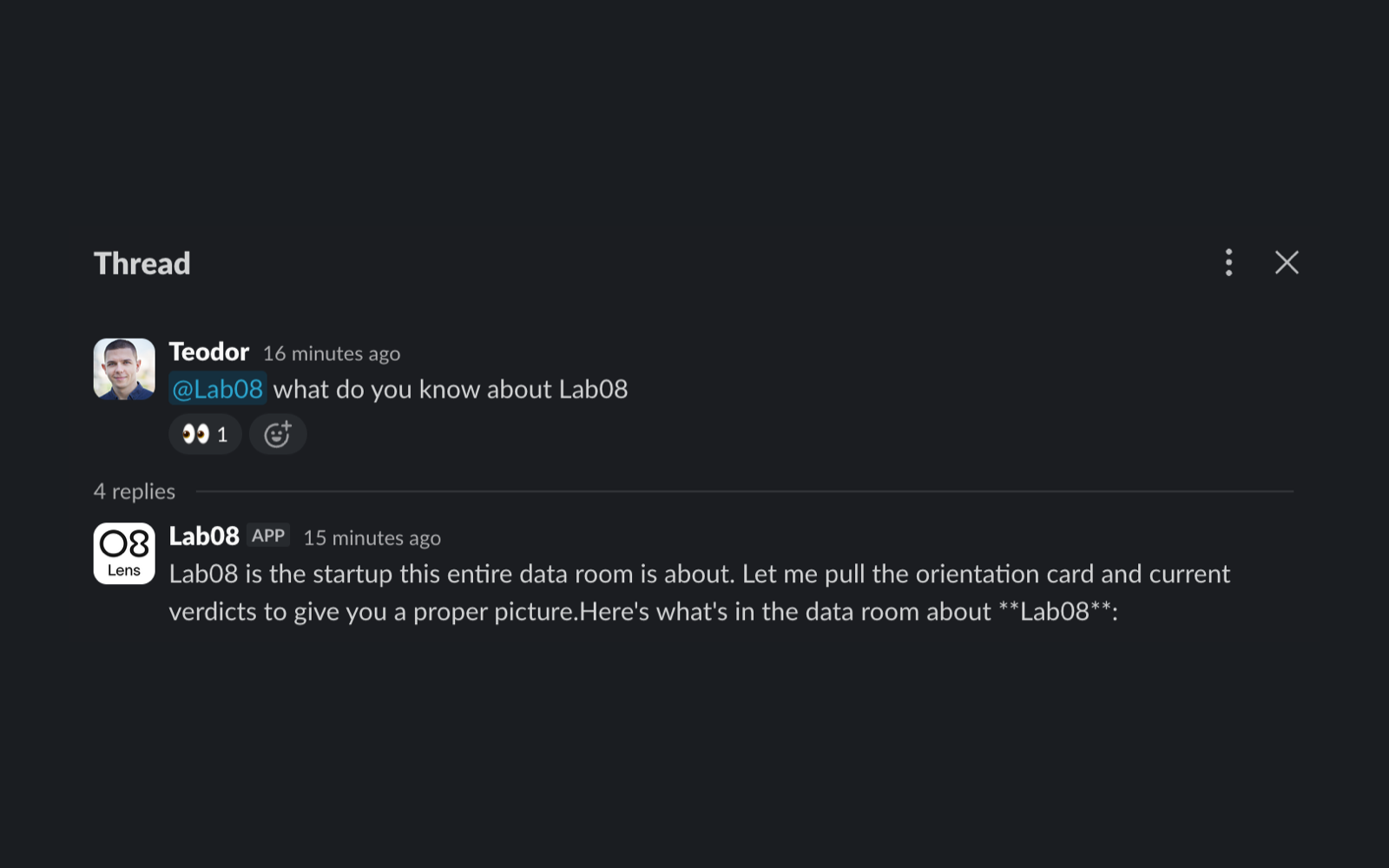
A question from Slack goes through the same assistant as a question typed in Lab08. It reads that company’s uploaded documents, meeting notes, due-diligence findings and generated conclusions, and posts one answer in the thread. Nothing is streamed or edited afterwards, so the channel stays quiet while it works.
Only Slack users linked to a Lab08 account in your workspace can ask questions or take actions. Everyone else in the channel can read the answer.
Answers are generated by a large language model and can be wrong. Every answer links back to the company in Lab08 so you can check the source before you rely on it. Lab08 does not take decisions for you.
/lab08 ask <question>- Ask about a company. Name the company in the question. Lab08 answers in a thread.
@Lab08 <question>- The same, by mentioning Lab08 in a bound channel.
/lab08 link- Connect your Slack account to your Lab08 account. Needed before you can ask or act.
/lab08 unlink- Disconnect it again.
/lab08 status- See what this channel is bound to.
/lab08 help- The list of commands, inside Slack.
Installing
Four steps, and the first is the only one that needs an admin
- 1
Install from Lab08
A Lab08 workspace admin opens Settings → Slack in Lab08 and chooses Install. Slack shows the permissions requested. One approval, and you are sent back to Lab08 settings with the workspace connected.
- 2
Choose channels
In the same settings card, bind a channel and tick the notifications it should receive. Public channels need nothing else. For a private channel, invite Lab08 with /invite @Lab08 first.
- 3
Link your account
Each team member who wants to ask questions or press buttons runs /lab08 link in Slack. Lab08 replies only to them with a link that finishes the connection in Lab08. The link is valid for 15 minutes.
- 4
Ask
Type /lab08 ask, or mention Lab08 in a bound channel. Lab08 reacts with 👀 while it works and posts one answer in the thread, ending with a button to open the company in Lab08.
To remove Lab08, uninstall it from Slack’s app management page or choose Disconnect in Lab08 settings. Either way Lab08 stops posting at once and every channel binding and account link is removed.
What Lab08 can see
Six permissions, each for one reason
chat:write- Post notifications and answers in the channels an admin has bound.
chat:write.public- Post in public channels without having to be invited to each one.
commands- Provide the /lab08 command.
app_mentions:read- See a message when it mentions @Lab08. Nothing else.
channels:read, groups:read- List channel names so an admin can pick which to bind. Lab08 is shown private channels only after it is invited.
reactions:write- Add the 👀 reaction that shows a question has been picked up.
What Lab08 never asks for
Nothing you would not want it to read
- Channel or direct-message history. Lab08 answers what it is asked. It does not read the room.
- Files shared in Slack.
- Your member directory or anyone’s email address.
- Any permission tied to the person who installs. Lab08 holds a bot token only, never a user token.
Lab08 follows Slack’s privacy model: it never shows anyone something they could not already see in Slack or in Lab08. Asking in a channel that is not bound is refused, not answered.
Privacy and security
Built for funds who read the permissions screen
-
Hosted in the EU
Lab08 runs on Amazon Web Services in Frankfurt. Answers come from your workspace’s AI agent, which runs Anthropic’s Claude models through Amazon Bedrock in the EU, unless your workspace is set up to use Anthropic directly, in the United States. Lab08 does not use Slack content to train models.
-
Tokens sealed, requests verified
The bot token is encrypted at rest and bound to your workspace’s record, so it cannot be lifted into another. Every request from Slack is checked against Slack’s signing secret before Lab08 acts on it.
-
Questions, not history
The only Slack text Lab08 ever receives is a question addressed to it. The question and its answer are saved as a conversation in your Lab08 workspace, under your control, like a chat in the app.
-
Clear about what happens next
The privacy policy has a section on the Slack app: what we receive, how long we keep it and how to have it removed. The support page and the terms of service cover everything else.
Ready when your team is
Have a Lab08 workspace? Install takes a minute. Not yet? Thirty minutes with the team and your live pipeline is the fastest way to see whether Lab08 fits.
Support · Privacy policy · Terms of service · support@lab08.com